Google Meet's call control (WebHID) works with Chromium snap
Google Meet’s “Call control” feature synchronizes the physical mute status and LED indicator on supported devices (e.g. headsets and conference speakerphones) with your mute status inside a Meet call. Other platforms including web-based Zoom clients offer equivalent functionality.
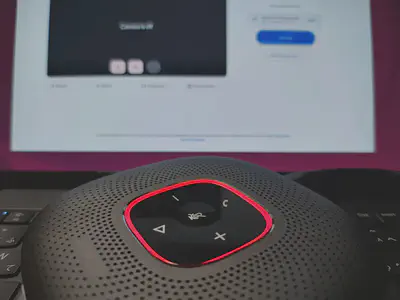
This relies on WebHID to let web pages communicate directly with Human Interface Devices (HID). Because Firefox does not support WebHID as a conscious decision, I tested it with the Chromium snap first. Mute synchronization didn’t work initially, even though Chromium detected the speakerphone. I suspected snap confinement issues, but testing it with the .deb package of Google Chrome didn’t work either.
Chrome’s documentation notes that WebHID on Linux requires configuration, but it does not specify what exact udev rules are needed.
https://support.google.com/chrome/answer/12576972?hl=en
Tip: To access the connected device on the Linux system, the udev rule needs to be configured appropriately.
By default and by design, hidraw devices used by WebHID are accessible only by the root user. However, certain devices (e.g. Yubikeys classified under ID_SECURITY_TOKEN) receive udev rules that grant access to the logged-in user via uaccess tagging.
$ ls -alF /dev/hidraw*
crw-rw----+ 1 root root 240, 0 Nov 17 21:14 /dev/hidraw0  ## <- Yubikey
crw-------  1 root root 240, 1 Nov 17 21:13 /dev/hidraw1  ## <- conference speakerphone

$ getfacl -t /dev/hidraw0  ## <- Yubikey
getfacl: Removing leading '/' from absolute path names
# file: dev/hidraw0
USER   root      rw-
user   sssd      rw-
user   nobuto    rw-  ## <- access granted for the logged-in user
GROUP  root      ---
mask             rw-
other            ---
Once I know how ACL works, an explicit udev rule for a specific device can be configured as follows:
# Make Anker PowerConf available for WebHID
# Change the vendor and product ID to fit your hardware
SUBSYSTEM=="hidraw", KERNEL=="hidraw*", ATTRS{idVendor}=="291a", ATTRS{idProduct}=="3301" TAG+="uaccess"
The Chromium snap requires additional setup. The snap’s AppArmor confinement does not block access to /dev/hidraw* thanks to the auto-connection of the u2f-devices interface. The remaining step is to tag specific devices so the snap can access them. The final udev rules are saved as follows in /etc/udev/rules.d/69-snap.chromium_custom.rules:
# Make Anker PowerConf available for WebHID
# Change the vendor and product ID to fit your hardware
SUBSYSTEM=="hidraw", KERNEL=="hidraw*", ATTRS{idVendor}=="291a", ATTRS{idProduct}=="3301" TAG+="uaccess"

# Tagging for the Chromium snap to be run before 70-snap.chromium.rules
# Change the vendor and product ID to fit your hardware
SUBSYSTEM=="hidraw", KERNEL=="hidraw*", ATTRS{idVendor}=="291a", ATTRS{idProduct}=="3301" TAG+="snap_chromium_chromedriver"
SUBSYSTEM=="hidraw", KERNEL=="hidraw*", ATTRS{idVendor}=="291a", ATTRS{idProduct}=="3301" TAG+="snap_chromium_chromium"
SUBSYSTEM=="hidraw", KERNEL=="hidraw*", ATTRS{idVendor}=="291a", ATTRS{idProduct}=="3301" TAG+="snap_chromium_daemon"
After completing those prerequisites and enrolling the device in the Google Meet configuration, we are good to go.
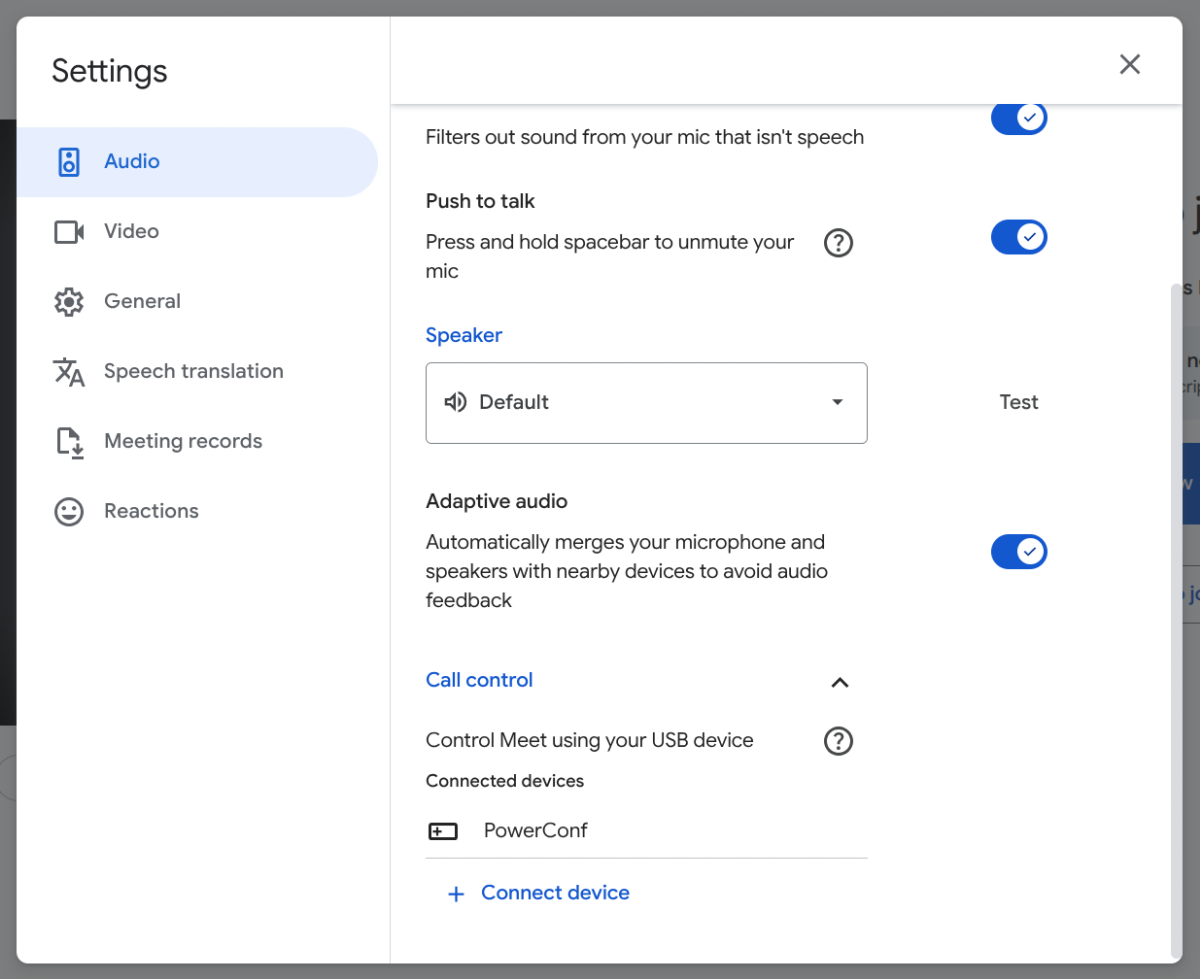
Bidirectional mute status synchronization over WebHID now works seamlessly with the Chromium snap! It works with web-based Zoom calls too.